
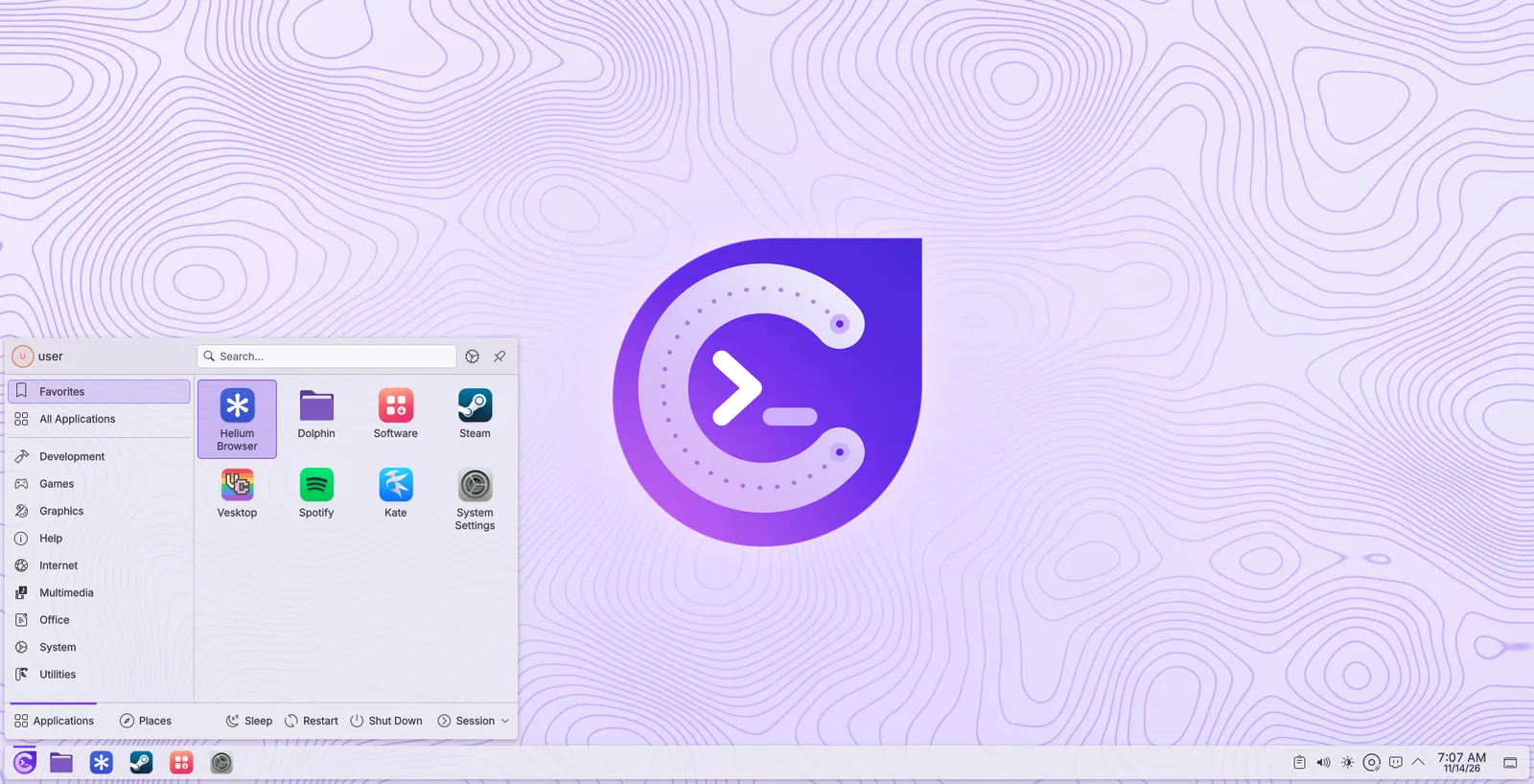
The panelPanel
- Application menu (the Choutes Project logo, left): favourites, all applications by category, and search. Type right after opening it to search.Menu aplikasi (logo Choutes Project, kiri): kegemaran, semua aplikasi mengikut kategori, dan carian. Taip sejurus selepas membukanya untuk mencari.
- Pinned applications: Dolphin, Helium, Steam, Software, and System Settings. Right-click an open application, then Pin to Task Manager, to add it.Aplikasi yang disematkan: Dolphin, Helium, Steam, Software dan System Settings. Klik kanan aplikasi yang dibuka, kemudian Pin to Task Manager, untuk menambahnya.
- System tray (right): network, sound, Bluetooth, battery and power profile, clipboard, notifications, and the clock. Click the arrow for the hidden ones.Dulang sistem (kanan): rangkaian, bunyi, Bluetooth, bateri dan profil kuasa, papan keratan, pemberitahuan dan jam. Klik anak panah untuk yang tersembunyi.
The panel follows the size of the screen: smaller on small screens. Right-click the panel, then Show Panel Configuration, to change it.
Panel mengikut saiz skrin: lebih kecil pada skrin kecil. Klik kanan panel, kemudian Show Panel Configuration, untuk mengubahnya.
FilesFail
Dolphin is the file manager. Right-click a file or the empty space for actions such as Open With, Compress (Ark), and Open Terminal Here. Drives and USB drives appear under Devices. To change a system file, right-click it and choose Open as Administrator (kio-admin).
Dolphin ialah pengurus fail. Klik kanan fail atau ruang kosong untuk tindakan seperti Open With, Compress (Ark) dan Open Terminal Here. Pemacu dan pemacu USB muncul di bawah Devices. Untuk mengubah fail sistem, klik kanan dan pilih Open as Administrator (kio-admin).
SettingsTetapan
System Settings holds every setting of the desktop: display and scaling, sound, network, Bluetooth, users, region and language, power, and appearance.
System Settings mengandungi setiap tetapan desktop: paparan dan penskalaan, bunyi, rangkaian, Bluetooth, pengguna, wilayah dan bahasa, kuasa, dan rupa.
Keyboard shortcutsPintasan papan kekunci
| KeysKekunci | ActionTindakan |
|---|---|
| MetaMeta | Open the application menu (Meta is the Windows key)Buka menu aplikasi (Meta ialah kekunci Windows) |
| Meta+LMeta+L | Lock the screenKunci skrin |
| Meta+EMeta+E | Open DolphinBuka Dolphin |
| Ctrl+Alt+TCtrl+Alt+T | Open Konsole (terminal)Buka Konsole (terminal) |
| Alt+TabAlt+Tab | Switch between windowsBertukar antara tetingkap |
| Meta+WMeta+W | Overview of windows and desktopsGambaran keseluruhan tetingkap dan desktop |
| Meta+DMeta+D | Show the desktopTunjukkan desktop |
| Meta+← / Meta+→Meta+← / Meta+→ | Fill the left or right half of the screenPenuhi separuh kiri atau kanan skrin |
| PrintPrint | Take a screenshot (Spectacle)Ambil tangkapan skrin (Spectacle) |
| Ctrl+EscCtrl+Esc | System Monitor: see and end programsSystem Monitor: lihat dan tamatkan program |
Change or add shortcuts in System Settings > Keyboard > Shortcuts.
Ubah atau tambah pintasan dalam System Settings > Keyboard > Shortcuts.
Lock and log outKunci dan log keluar
The lock screen looks like the login screen. Type your password and press Enter to unlock. Sleep, Restart, Shut Down, and Log Out are at the bottom of the application menu.
Skrin kunci kelihatan seperti skrin log masuk. Taip kata laluan dan tekan Enter untuk membuka kunci. Sleep, Restart, Shut Down dan Log Out berada di bahagian bawah menu aplikasi.